Architecting Intelligent Microsoft 365 Agents and Applications Using n8n
How developers can use n8n to build intelligent, secure AI agents for Microsoft 365, replacing rigid traditional workflows with dynamic reasoning capabilities.

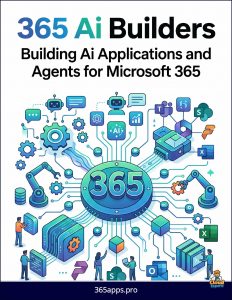 The enterprise workspace is undergoing a massive shift from static, rule-based automations to dynamic, AI-driven agents.
For organizations heavily invested in Microsoft 365 (M365), building custom applications and agents that interact with Outlook, Teams, SharePoint, and OneDrive is often a priority.
While Microsoft offers its own ecosystem (Power Automate, Copilot Studio), developers often seek tools that provide greater flexibility, deeper vendor-agnostic integrations, and self-hosting capabilities.
Enter n8n, a highly extensible workflow automation platform that has recently evolved into a powerful visual framework for building AI agents.
Why n8n for Microsoft 365 Development?
Traditionally, n8n has been viewed as a standard integration Platform as a Service (iPaaS). However, with the introduction of its Advanced AI features—which visually expose LangChain primitives—n8n is now a robust environment for agentic development.
- Self-Hosting & Data Sovereignty: Enterprise M365 data is highly sensitive. n8n can be self-hosted on-premises or in a private cloud, ensuring that sensitive emails and documents never traverse a third-party automation vendor’s servers.
- Advanced AI Primitives: n8n includes native nodes for AI Agents, Large Language Models (LLMs), Vector Stores, Memory (e.g., Redis, Buffer), and Tools.
- Graph API Extensibility: While n8n has pre-built nodes for Outlook, Teams, and OneDrive, developers can seamlessly fall back to the HTTP Request node to interact with any endpoint on the Microsoft Graph API.
- Code When You Need It: You aren’t locked into a purely no-code environment. n8n allows for custom JavaScript or Python execution within the workflow.
The Foundation: Connecting n8n to Microsoft 365
Before an agent can reason over M365 data, n8n must establish a secure connection to the Microsoft Graph. This is handled via Microsoft Entra ID (formerly Azure AD).
1. App Registration
To connect n8n, you must register a new application within the Microsoft Entra ID portal.
- Authentication: Configure an OAuth2 redirect URI pointing to your n8n instance.
- API Permissions: Grant the app delegated or application permissions based on what your agent needs to do (e.g.,
Mail.ReadWrite,Files.Read.All,Chat.ReadWrite).
2. Credential Management in n8n
n8n abstracts the complexity of token lifecycle management. By inputting your Entra ID Client ID and Client Secret into n8n’s Microsoft OAuth2 credentials interface, n8n will automatically handle the initial user consent flow, token generation, and background token refreshing.
Building Microsoft 365 AI Agents in n8n
Developing an agent differs fundamentally from building a traditional workflow. A traditional workflow follows a rigid path (e.g., If an email arrives, post a Teams message). An agent uses an LLM as its reasoning engine to decide which tools to use and in what order.
Here is how you structure an M365 agent within n8n:
1. The Agent Node (The Brain)
At the center of your canvas is the AI Agent node. You connect an LLM (such as OpenAI’s GPT-4o, Anthropic’s Claude 3.5 Sonnet, or a local model via Ollama) to this node to serve as the agent’s logic center.
2. Memory (The Context)
Agents need conversation history to function like a personalized app. Connect a Window Buffer Memory or an external database (like PostgreSQL or Redis) to the Agent node so it remembers the context of the user’s M365 queries over time.
3. Custom Tools (The Hands)
This is where the M365 integration happens. You provide the agent with tools (sub-workflows or API calls) it can choose to execute.
Example M365 Tools for an Agent:
get_unread_emails: Uses the Microsoft Outlook node to fetch unread high-priority emails.search_sharepoint: Uses an HTTP Request node hitting the Graph API to run a keyword search across SharePoint documents.send_teams_message: Uses the Microsoft Teams node to post a summary or alert to a specific channel.
When a user prompts the agent via a chat interface or a webhook, the LLM analyzes the prompt, realizes it needs M365 data, and autonomously triggers the relevant tools.
Real-World Use Case: The Intelligent Triage Agent
Let’s look at how a developer can use n8n to build an automated Helpdesk Triage Agent for an IT team using M365.
- Trigger: An email arrives in a shared
support@company.comOutlook inbox. n8n’s Outlook Trigger node captures the event. - Information Retrieval: The workflow passes the email content to an AI Agent node. The agent utilizes a Vector Store tool connected to your company’s SharePoint documentation to find relevant IT fixes.
- Reasoning: The LLM assesses if the email is a routine password reset or a critical server outage.
- Action Formulation: If routine*, the agent uses an Outlook node to reply to the user with a step-by-step guide retrieved from SharePoint.
- If critical, the agent uses the Teams node to immediately ping the on-call engineer’s channel, summarizing the issue and categorizing its urgency.
Architectural Comparison
| Feature | Traditional Automation (e.g., Standard iPaaS) | n8n Agentic Architecture |
|---|---|---|
| Logic | Rigid, rule-based (If X, then Y) |
Dynamic, LLM-driven reasoning |
| Handling Edge Cases | Fails or requires complex conditional branching | Gracefully adapts based on LLM comprehension |
| M365 Interaction | Executes exact sequence of API calls | Autonomously selects M365 APIs as “Tools” based on the task |
| User Interaction | Static forms and pre-defined webhooks | Conversational chat interfaces with memory |
Best Practices for M365 Agent Development
- Implement Principle of Least Privilege: When registering your app in Microsoft Entra ID, only grant the exact Graph API scopes the agent requires. Do not grant
Directory.ReadWrite.Allif the agent only needs to read emails. - Use the “Call Workflow” Node for Tools: Instead of cluttering your main agent canvas, build your M365 actions as separate n8n workflows. Expose these sub-workflows as Tools to the main AI Agent. This makes your M365 integrations modular, testable, and reusable across different agents.
- Handle Rate Limits: The Microsoft Graph API enforces strict throttling limits. Use n8n’s built-in error handling and retry settings (with exponential backoff) on your M365 nodes to ensure robust application performance.
- Human-in-the-Loop (HITL): For high-stakes actions (e.g., having the agent draft and send an email on behalf of an executive), use n8n’s
Waitnode to route the drafted payload to a human via Teams or Slack for approval before the final API execution.
By combining the vast surface area of the Microsoft Graph API with the dynamic reasoning capabilities of n8n’s Advanced AI nodes, developers can bypass the limitations of rigid automations and build deeply integrated, highly intelligent M365 applications tailored entirely to their enterprise workflows.