Migrating to Cloud PCs: A Comprehensive Guide to Seamless Transition to a Digital Workplace in the Cloud
This structured migration delivers a resilient, high-performance computing foundation that adapts to evolving needs, enhances security posture, and supports innovation in a cloud-first era.

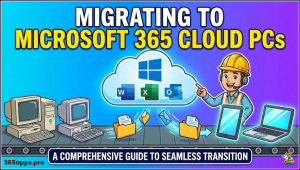 Migrating to Windows 11 combined with Cloud PCs represents a strategic shift toward a modern, flexible, and secure digital workplace.
This approach leverages Windows 11’s enhanced interface, performance improvements, and built-in protections alongside the anytime-anywhere access, centralized management, and scalability of Cloud PCs (such as Windows 365 or Azure Virtual Desktop).
The result is greater productivity, reduced hardware dependency, and simplified IT operations in hybrid and remote environments.
Preparation Phase
Begin by thoroughly assessing the current setup. Check devices against Windows 11 hardware requirements: a compatible 64-bit processor, 4 GB RAM minimum, 64 GB storage, TPM 2.0 enabled, and Secure Boot activated. Use Microsoft’s free PC Health Check tool for quick eligibility scans.
For Cloud PC readiness, confirm internet connectivity meets at least 20 Mbps for smooth performance and low latency. Conduct a full application inventory to identify compatibility issues, particularly with older software that may require updates, workarounds, or replacement.
Define clear objectives—such as strengthening security, enabling seamless remote work, or lowering hardware refresh costs—to guide decisions. Choose whether to upgrade to Windows 11 first, implement Cloud PCs independently, or pursue both simultaneously. Adopt a phased rollout, starting with a pilot group of users to identify real-world challenges and refine the process before wider deployment.
Prioritize comprehensive backups to prevent data loss. Employ Windows File History for local files, or migrate data to OneDrive and Azure Blob Storage for cloud-based continuity. Communicate the transition plan to all stakeholders, highlighting benefits like improved mobility and reduced maintenance. Provide access to Microsoft training materials and set up dedicated support channels to address questions and build confidence.
Execution Phase
Upgrade eligible Windows 10 devices (version 2004 and later) to Windows 11 through Windows Update when the option appears. For more control, download the Windows 11 Installation Assistant from Microsoft’s site for a guided in-place upgrade. Perform a clean installation using the Media Creation Tool to create bootable media when a fresh start is preferred. After upgrading, check Device Manager for driver issues, test key applications, and apply manufacturer updates as necessary.
To deploy Cloud PCs, select an appropriate subscription model—Windows 365 Business for straightforward setup or Enterprise for advanced governance—along with required Microsoft 365 licenses. In the management portal, assign users, specify hardware configurations (CPU, RAM, storage), choose a Windows 11 image, and apply policies including multi-factor authentication. Users connect via dedicated client apps on PCs, mobiles, or tablets, or directly through a web browser.
Integrate the environments by enabling OneDrive for file and settings synchronization across local Windows 11 devices and Cloud PCs. Use unified Microsoft Account sign-in to maintain consistent preferences. For organizations, apply Microsoft Intune to enforce policies uniformly across physical and virtual endpoints.
Validate the deployment by testing boot performance, application functionality, remote access, and overall responsiveness. Address common issues such as driver incompatibilities, network latency, or authentication problems using official Microsoft troubleshooting resources.
Optimization and Ongoing Management
Tune Windows 11 for peak performance by selecting high-performance power plans, disabling non-essential startup items, and activating Storage Sense to manage disk space automatically. For Cloud PCs, regularly review usage metrics in the dashboard and scale resources upward or downward based on demand. Improve network conditions with wired connections where possible and apply Quality of Service (QoS) settings to prioritize traffic.
Strengthen security across both platforms. On Windows 11 devices, enable Windows Hello biometrics, BitLocker full-disk encryption, and keep Windows Defender definitions current. For Cloud PCs, mandate MFA, implement Conditional Access policies, and conduct periodic access audits. Synchronize security configurations via Intune for consistent protection.
Maintain the environment through automatic Windows and app updates, routine backups, and proactive monitoring with tools like Endpoint Manager or built-in Task Manager. Establish ongoing user support via helpdesks, knowledge bases, and feedback mechanisms to resolve adoption hurdles and continuously improve the setup.
Advanced Capabilities and Long-Term Strategy
Unlock additional value with Windows 11 features such as Microsoft Copilot for AI-driven productivity, Snap Layouts for efficient multitasking, DirectStorage for faster game and app loading, and PowerToys utilities. On the Cloud PC side, explore GPU-accelerated plans for creative or compute-intensive workloads, hybrid Azure AD join for single sign-on, and native Teams optimization.
Scale efficiently using Windows Autopilot for automated device provisioning and reserved instance pricing to manage costs. Stay current by participating in the Windows Insider Program for early access to feature updates (such as annual releases) and monitoring Cloud PC innovations, including emerging ARM-based options.
Position the organization for the future by aligning with compliance requirements (GDPR, HIPAA), gradually shifting toward cloud-native workflows, and investing in continuous user education on new tools and best practices.
This structured migration delivers a resilient, high-performance computing foundation that adapts to evolving needs, enhances security posture, and supports innovation in a cloud-first era.